Cloud Execution
Device Farm supports integration with cloud device providers like TestMu AI (formerly LambdaTest), BrowserStack, SauceLabs, and custom WebDriver endpoints. This allows you to seamlessly run your automation tests on cloud devices alongside your local device farm.
Overview
Cloud execution in Device Farm enables you to:
- Run tests on cloud providers without changing your test code
- Combine local and cloud devices in your testing strategy
- Centrally manage cloud provider credentials and device configurations
- Track cloud sessions alongside local sessions in the dashboard
Automation Only
Cloud devices are available for automation testing only. Manual/live testing sessions are not supported for cloud devices.
Supported Providers
| Provider | Type Key | Base URL Example |
|---|---|---|
| TestMu AI (formerly LambdaTest) | lambdatest |
https://mobile-hub.lambdatest.com/wd/hub |
| BrowserStack | browserstack |
https://hub-cloud.browserstack.com/wd/hub |
| SauceLabs | saucelabs |
https://ondemand.us-west-1.saucelabs.com/wd/hub |
| Custom | custom |
Any WebDriver-compatible endpoint |
Configuring Cloud Providers
Step 1: Access Cloud Providers
Navigate to Admin → Cloud Providers in the sidebar.
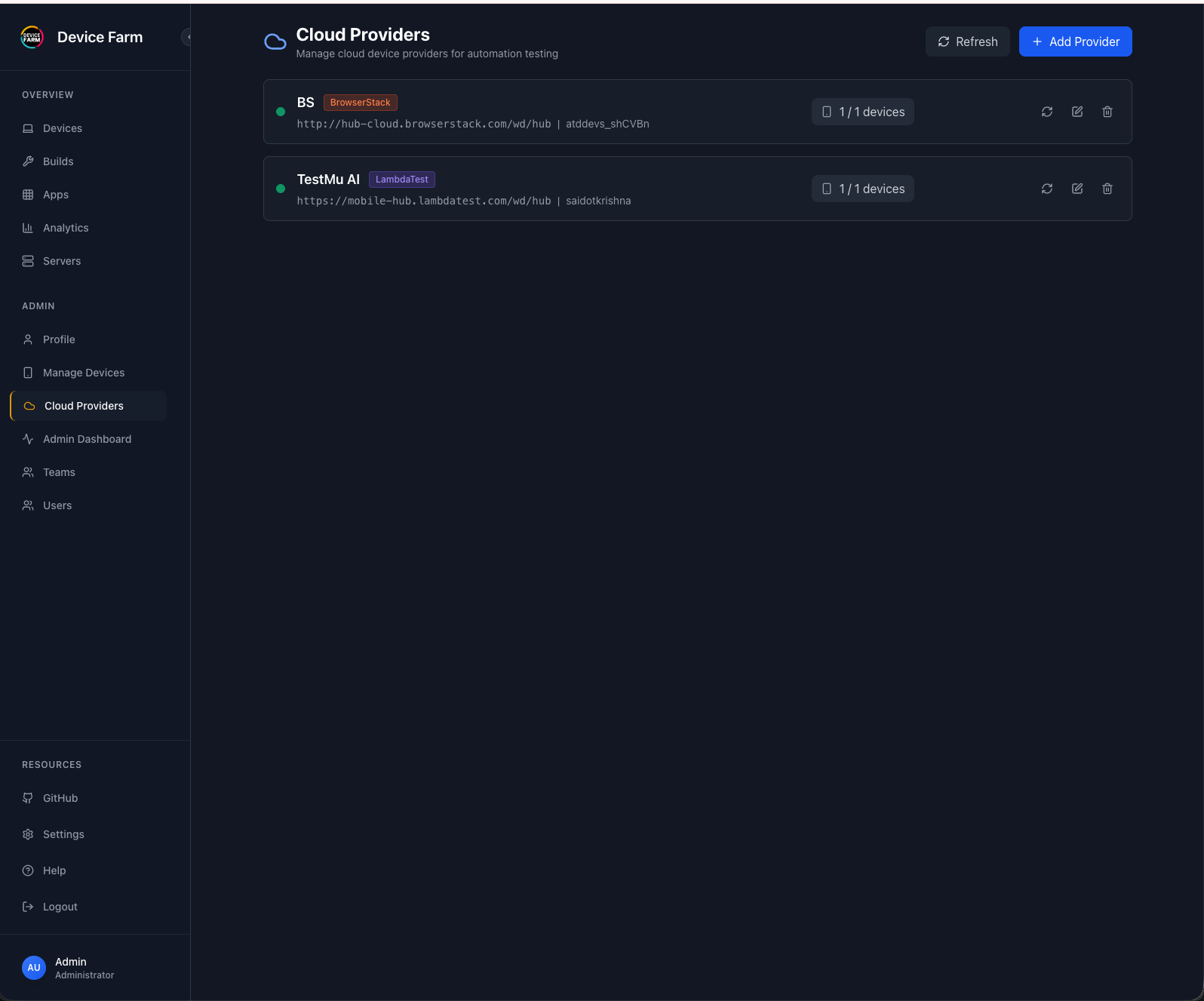
This page displays all configured cloud providers for your organization. Each provider shows:
- Provider name and type
- Base URL and username
- Number of configured devices
- Actions: Test connection, Edit, Delete
Step 2: Add a Cloud Provider
Click + Add Provider to configure a new cloud provider.
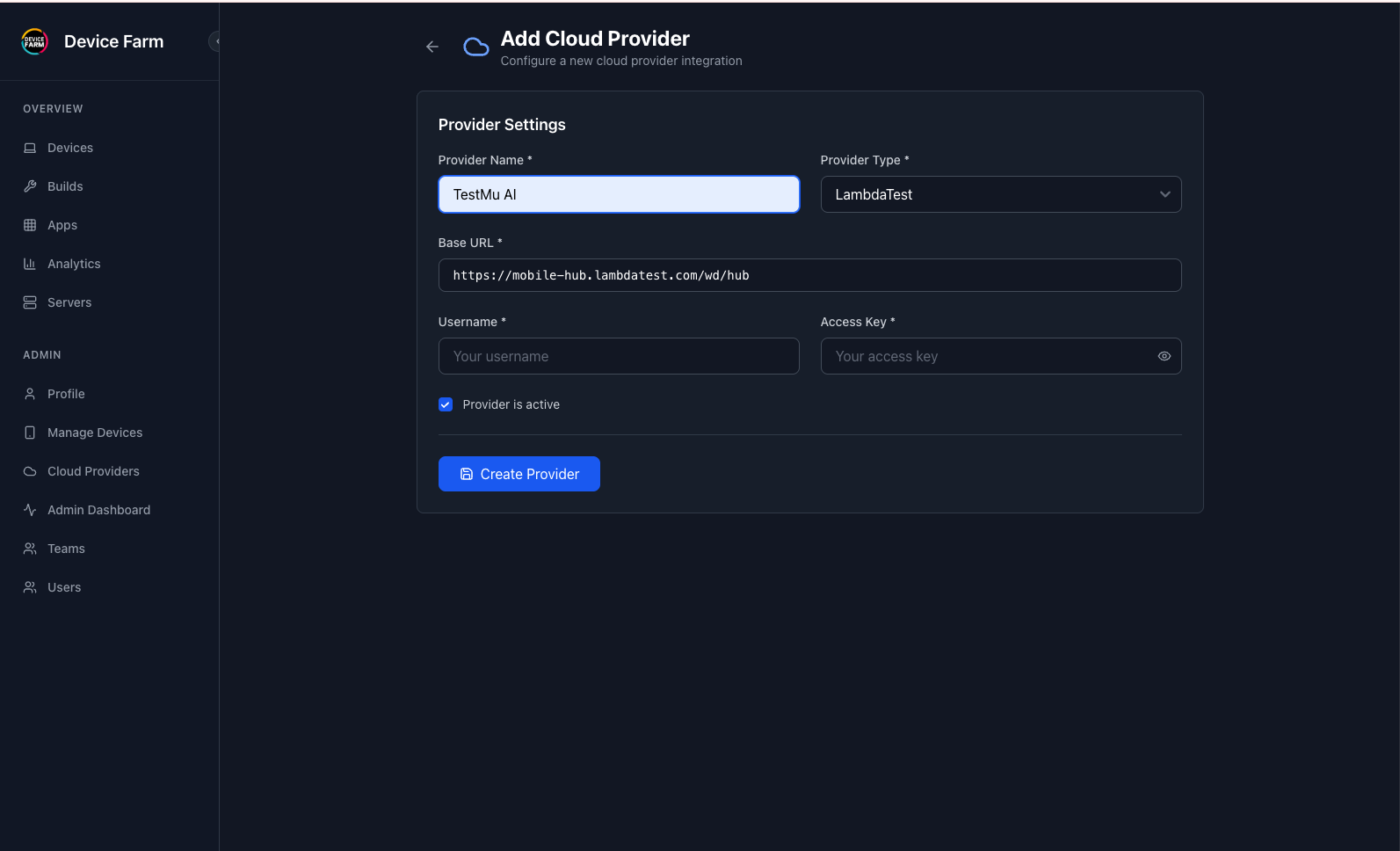
Fill in the provider settings:
| Field | Description | Example |
|---|---|---|
| Provider Name | A friendly name for this provider | TestMu AI, Production BrowserStack |
| Provider Type | Select from dropdown | LambdaTest, BrowserStack, SauceLabs, Custom |
| Base URL | WebDriver hub URL for the provider | https://mobile-hub.lambdatest.com/wd/hub |
| Username | Your cloud provider username/email | your-username |
| Access Key | Your cloud provider API key/access key | your-access-key |
| Provider is active | Enable/disable this provider | Checked |
Click Create Provider to save.
Finding Your Credentials
- TestMu AI: Profile → Account Settings → Password & Security
- BrowserStack: Account → Settings → Automate
- SauceLabs: Account → User Settings
Step 3: Add Cloud Devices
After creating a provider, you need to add device configurations. Click on the provider to edit it, then click + Add Device.
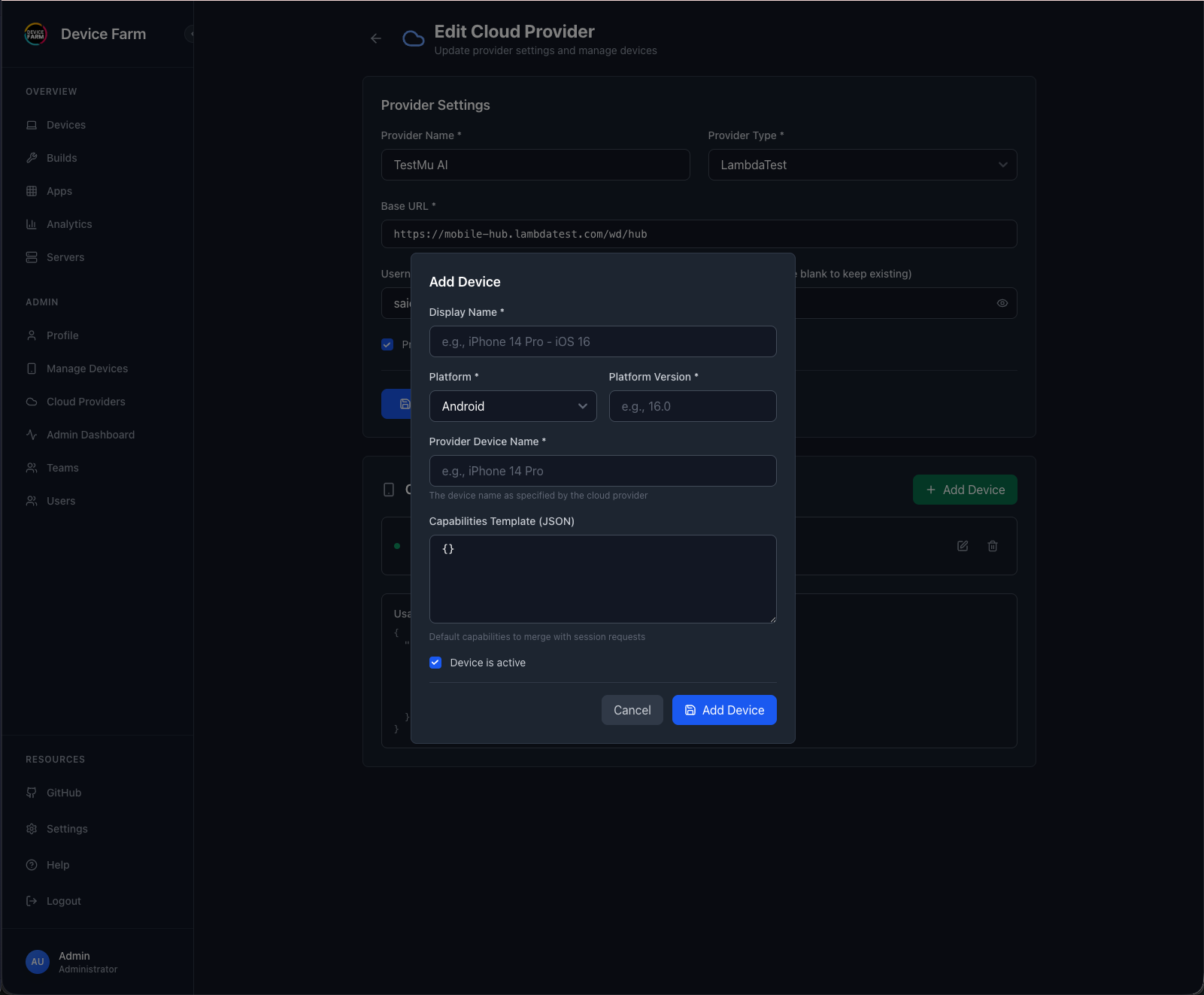
Configure the device:
| Field | Description | Example |
|---|---|---|
| Display Name | Friendly name shown in Device Farm | Pixel 10, iPhone 14 Pro - iOS 16 |
| Platform | Android or iOS |
Android |
| Platform Version | OS version number | 16, 16.0 |
| Provider Device Name | Device name as specified by the cloud provider | Pixel 10, iPhone 14 Pro |
| Capabilities Template | Default capabilities merged with test requests (JSON) | See below |
| Device is active | Enable/disable this device | Checked |
Example Device Configuration
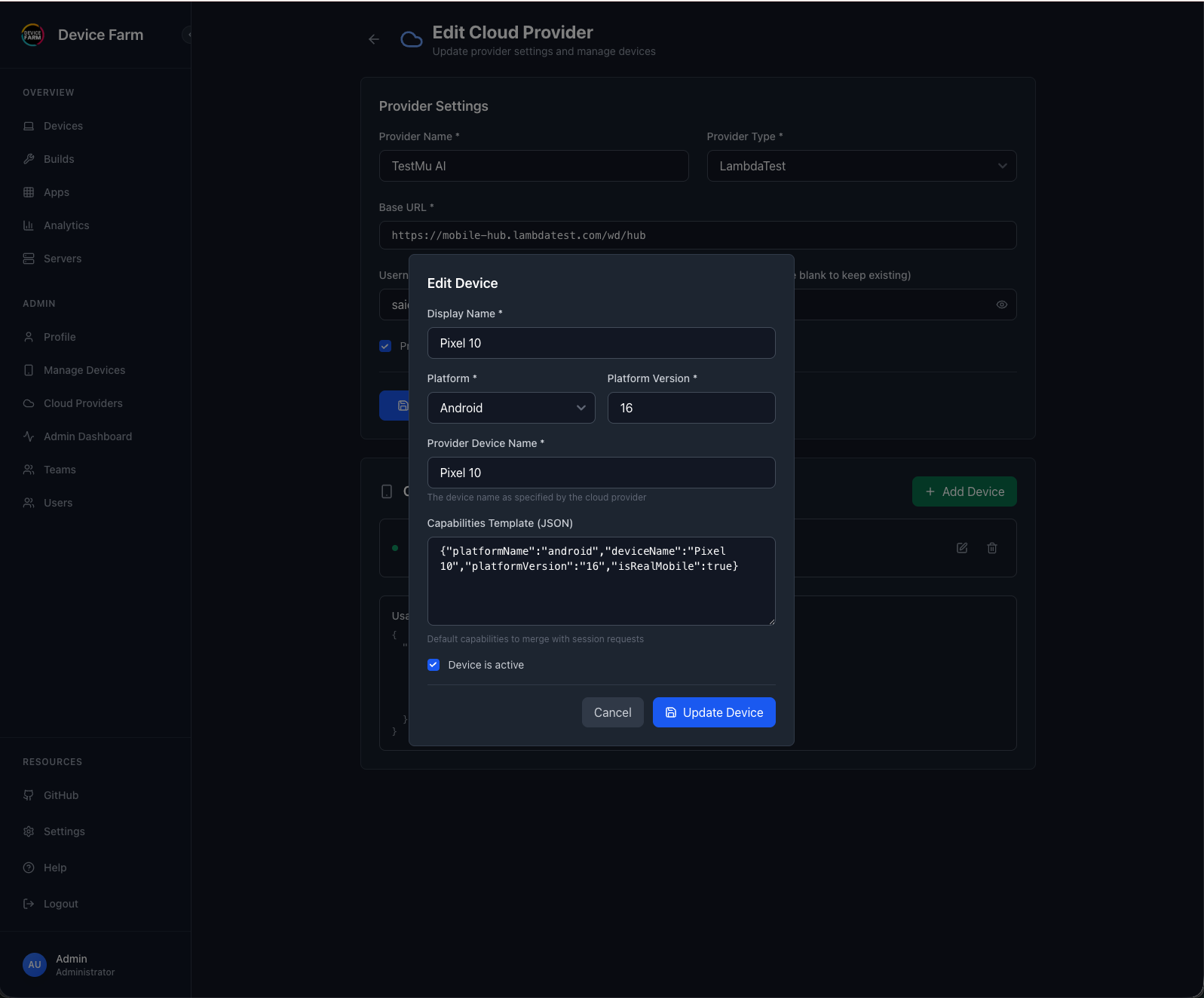
Capabilities Template example for TestMu AI Android:
{
  "platformName": "android",
  "deviceName": "Pixel 10",
  "platformVersion": "16",
  "isRealMobile": true
}
Capabilities Template example for BrowserStack iOS:
{
  "platformName": "ios",
  "deviceName": "iPhone 14 Pro",
  "platformVersion": "16",
  "bstack:options": {
    "deviceName": "iPhone 14 Pro",
    "osVersion": "16"
  }
}
Viewing Cloud Devices
Cloud devices appear in the Devices page under the Cloud Devices tab.
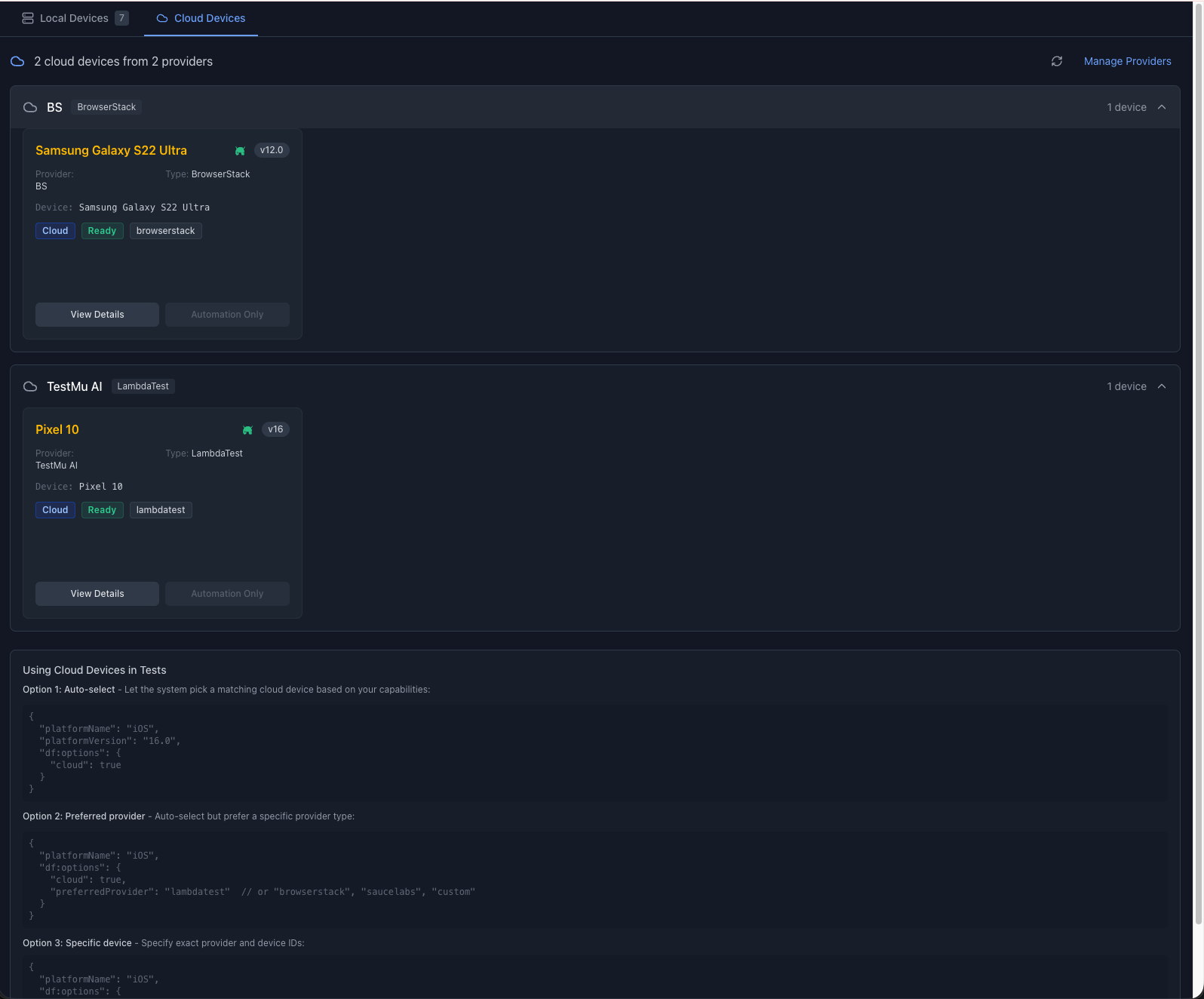
The cloud devices tab shows:
- Devices grouped by provider
- Device name, platform, and version
- Provider type badge
- Status (Ready/Busy)
- Active session ID when in use
Using Cloud Devices in Tests
There are three ways to target cloud devices in your automation tests:
Option 1: Auto-Select (Recommended)
Let Device Farm automatically select a matching cloud device based on your capabilities:
{
  "platformName": "iOS",
  "platformVersion": "16.0",
  "df:options": {
    "cloud": true
  }
}
Device Farm will find a cloud device matching your platformName and platformVersion.
Option 2: Preferred Provider
Auto-select but prefer a specific provider type:
{
  "platformName": "iOS",
  "df:options": {
    "cloud": true,
    "preferredProvider": "lambdatest"
  }
}
Valid values for preferredProvider:
lambdatest(TestMu AI)browserstacksaucelabscustom
If no matching device is found on the preferred provider, Device Farm falls back to other providers.
Option 3: Specific Device
Target an exact provider and device by their IDs:
{
  "platformName": "iOS",
  "df:options": {
    "cloudProviderId": "<provider-uuid>",
    "cloudDeviceId": "<device-uuid>"
  }
}
You can find the provider and device IDs by clicking View Details on a cloud device card.
Test Code Examples
Java (Appium)
DesiredCapabilities caps = new DesiredCapabilities();
caps.setCapability("platformName", "Android");
caps.setCapability("appium:platformVersion", "13");
caps.setCapability("appium:app", "https://example.com/app.apk");

// Device Farm cloud options
Map<String, Object> dfOptions = new HashMap<>();
dfOptions.put("cloud", true);
dfOptions.put("preferredProvider", "lambdatest"); // TestMu AI
dfOptions.put("accessKey", "your-device-farm-access-key");
caps.setCapability("df:options", dfOptions);

// Connect to Device Farm hub (not directly to cloud provider)
AndroidDriver driver = new AndroidDriver(
    new URL("https://your-device-farm-hub.com/wd/hub"),
    caps
);
Python (Appium)
from appium import webdriver
from appium.options.common import AppiumOptions

options = AppiumOptions()
options.set_capability("platformName", "Android")
options.set_capability("appium:platformVersion", "13")
options.set_capability("appium:app", "https://example.com/app.apk")

# Device Farm cloud options
options.set_capability("df:options", {
    "cloud": True,
    "preferredProvider": "lambdatest",  # TestMu AI
    "accessKey": "your-device-farm-access-key"
})

# Connect to Device Farm hub
driver = webdriver.Remote(
    command_executor="https://your-device-farm-hub.com/wd/hub",
    options=options
)
JavaScript (WebdriverIO)
// wdio.conf.js
exports.config = {
  hostname: 'your-device-farm-hub.com',
  port: 443,
  path: '/wd/hub',
  protocol: 'https',

  capabilities: [{
    platformName: 'Android',
    'appium:platformVersion': '13',
    'appium:app': 'https://example.com/app.apk',
    'df:options': {
      cloud: true,
      preferredProvider: 'browserstack',
      accessKey: 'your-device-farm-access-key'
    }
  }]
};
How It Works
When you request a cloud session:
- Session Request: Your test sends a session request to Device Farm hub
- Device Selection: Device Farm selects a matching cloud device based on capabilities
- Cloud Session: Device Farm creates a session on the cloud provider using stored credentials
- Command Proxying: All WebDriver commands are proxied through Device Farm to the cloud provider
- Session Tracking: The session is tracked in Device Farm alongside local sessions
- Cleanup: When the session ends, Device Farm cleans up both locally and on the cloud provider
sequenceDiagram
    participant Test as Test Script
    participant DF as Device Farm Hub
    participant Cloud as Cloud Provider

    Test->>DF: Create Session (df:options.cloud=true)
    DF->>DF: Find matching cloud device
    DF->>Cloud: Create Session (with provider credentials)
    Cloud-->>DF: Session ID + Capabilities
    DF-->>Test: Session Created

    loop Commands
        Test->>DF: WebDriver Command
        DF->>Cloud: Proxy Command
        Cloud-->>DF: Response
        DF-->>Test: Response
    end

    Test->>DF: Delete Session
    DF->>Cloud: Delete Session
    DF-->>Test: Session Deleted
Best Practices
1. Use Capabilities Templates
Configure default capabilities in the device configuration to avoid repetition in tests:
// Device capabilities template (configured in UI)
{
  "lt:options": {
    "w3c": true,
    "platformName": "android",
    "deviceName": "Pixel 10",
    "platformVersion": "16",
    "isRealMobile": true
  }
}
Your test only needs:
{
  "platformName": "Android",
  "df:options": {
    "cloud": true,
    "accessKey": "your-key"
  }
}
2. Organize by Environment
Create separate providers for different environments:
TestMu AI - ProductionTestMu AI - StagingBrowserStack - CI/CD
3. Monitor Usage
Check the Analytics page to monitor cloud session usage and costs across providers.
4. Test Connection
Use the Test Connection button after configuring a provider to verify credentials before running tests.
Troubleshooting
"No matching cloud device found"
- Verify the device is configured with correct
platformandplatformVersion - Check that both the provider and device are marked as active
- Ensure capabilities in your test match a configured device
"Cloud provider not found"
- Verify the
cloudProviderIdis correct - Check the provider hasn't been deleted
"Failed to create cloud session"
- Test the provider connection from the Cloud Providers page
- Verify your cloud provider credentials are correct
- Check your cloud provider account has available capacity
Session commands failing
- Ensure the cloud provider supports the command you're using
- Check cloud provider's documentation for capability requirements
- Review Device Farm logs for detailed error messages