Setup & Requirements
Prerequisites
- Appium version 3.X
- Node.js >= 22.0.0
- PostgreSQL >= 12 (for Hub-Node architecture)
- Appium drivers installed (
uiautomator2,xcuitest)
iOS Real Device Testing
For iOS real device testing, Device Farm supports two methods:
- Default:
xcrun devicectl(Apple's native tool) - Automatically used if
GO_IOSis not set - Requires Xcode and iOS development tools to be installed
- No additional configuration needed
-
Works on macOS systems
-
Optional: go-ios (for non-macOS systems or if you prefer to use go-ios)
- Download and install go-ios from https://github.com/danielpaulus/go-ios
- Set the
GO_IOSenvironment variable to the path of the go-ios binary:export GO_IOS=/path/to/go-ios - Or add it to your shell profile (
.bashrc,.zshrc, etc.):echo 'export GO_IOS=/path/to/go-ios' >> ~/.zshrc source ~/.zshrc - Note: If
GO_IOSis set, Device Farm will use go-ios instead ofxcrun devicectlfor iOS real device communication.
Installation - Hub(orchestrator)
npm install -g farm-orchestrator
Installation - Node(runner)
npm install -g farm-runner
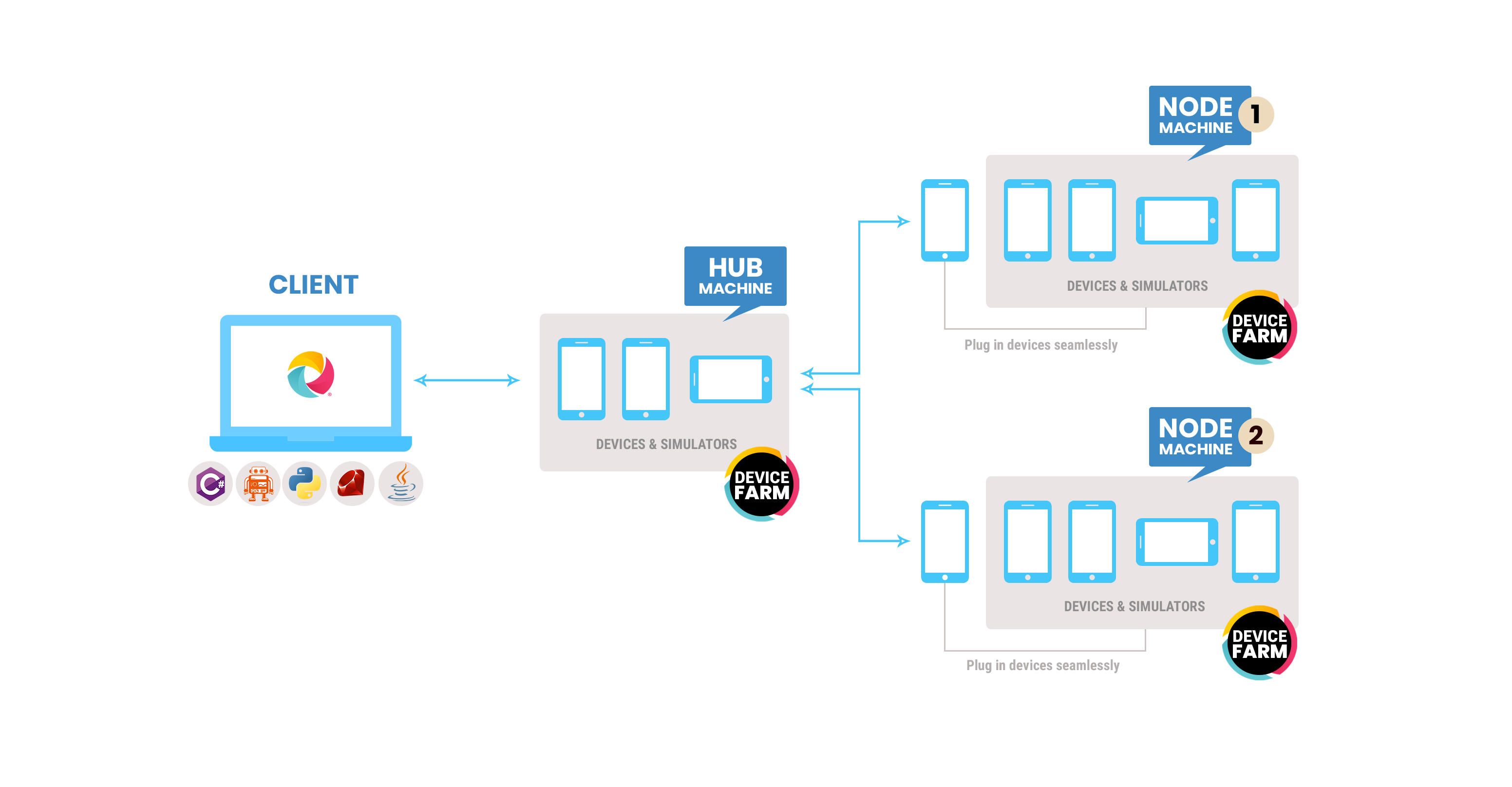
Start the Hub
Set up your database and start the orchestrator:
# Database Credentials
export DB_HOST=localhost
export DB_USER=postgres
export DB_PASSWORD=secret
export DB_NAME=device_farm

# Optional: Override default admin credentials
export DEFAULT_ADMIN_USERNAME=your_admin_username
export DEFAULT_ADMIN_PASSWORD=your_admin_password

# Start Hub
farm-orchestrator
Hub is now running at http://localhost:3000
First-Time Login
After starting the hub, you need to log in as an admin to generate API tokens for node connections:
- Navigate to
http://localhost:3000in your browser - Use the default credentials (or your custom credentials if you set environment variables):
- Username:
admin@device-farm.org - Password:
Admin@123
Default Credentials
If you didn't set DEFAULT_ADMIN_USERNAME and DEFAULT_ADMIN_PASSWORD environment variables, the default credentials are:
- Username: admin@device-farm.org
- Password: Admin@123
Start a Node
To connect a machine with devices to the hub, you need the accessKey and token from the hub. These credentials are required for the runner to connect to the orchestrator.
Getting Access Key and Token
- Log in to the hub dashboard at
http://localhost:3000using the admin credentials - Click on your profile name in the header
- Navigate to Profile → API Token
- The access key will be displayed above the API tokens table
- Click "Generate Token" to create a new API token
- Copy both the access key and the generated token

Configuring the Node
- Create
node.config.json:{ "hubUrl": "http://localhost:3000", "accessKey": "your-access-key-from-profile", "token": "your-generated-token", "name": "My-Mac-Mini", "platform": "both" } - Run the node:
farm-runner -c node.config.json
To reflect the test status on dashboard.
WDIO
      await driver.executeScript('devicefarm: setSessionStatus', [
        {
          status: 'passed', //passed or failed
        },
      ]);
To reflect the test name on dashboard.
WDIO
      await driver.executeScript('devicefarm: setSessionName', [
        {
          name: 'Test Name',
        },
      ]);